
How to Post to LinkedIn API (The Easy Way)
LinkedIn's API is one of the most developer-hostile in the industry. OAuth 2.0 setup, a LinkedIn app that needs product access approval, three separate endpoints to compose a single post, and documentation that reads like it was written by a compliance lawyer.
Most developers waste a full day just getting authentication working.
There's a faster path. The OmniSocials API wraps LinkedIn's entire API surface into a single authenticated endpoint. One request, one API key, no app review process. Here's how it works.
What Does It Take to Post to LinkedIn's Native API?
Before showing the easy way, it's worth understanding why the native approach is so painful.
LinkedIn's native posting API requires:
- Creating a LinkedIn app in their developer portal
- Requesting product access for the Share on LinkedIn or UGC Posts product (manual review, can take days)
- Implementing OAuth 2.0 with scopes like
w_member_social - Exchanging and storing tokens (access tokens expire; refresh tokens are limited)
- Making a POST to
/v2/ugcPostswith a heavily nested JSON payload
Here's what a minimal LinkedIn UGC post payload looks like:
{
  "author": "urn:li:person:{personId}",
  "lifecycleState": "PUBLISHED",
  "specificContent": {
    "com.linkedin.ugc.ShareContent": {
      "shareCommentary": {
        "text": "Hello, LinkedIn."
      },
      "shareMediaCategory": "NONE"
    }
  },
  "visibility": {
    "com.linkedin.ugc.MemberNetworkVisibility": "PUBLIC"
  }
}
That payload is just for a plain text post. Add an image and you're looking at a separate media upload step with its own endpoint, followed by registering the asset, then referencing it in your post request.
It's three API calls to post one image to LinkedIn. Every time.
How to Post to LinkedIn Using the OmniSocials API
What is the OmniSocials API?
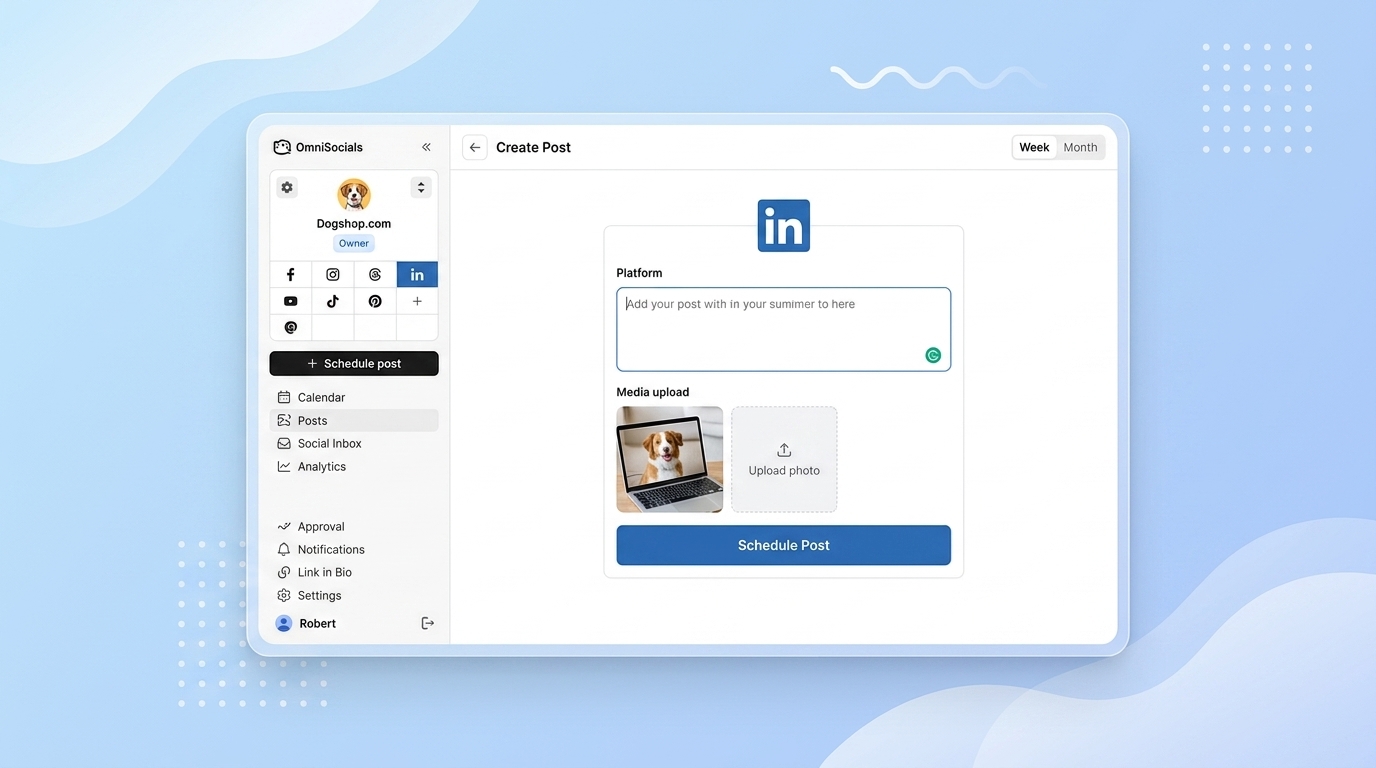
The OmniSocials API is a unified social media publishing API that covers 11 platforms, including LinkedIn, Instagram, TikTok, X, Bluesky, and more. You connect your accounts once through the OmniSocials dashboard, and all posting goes through a single endpoint with a single API key. No OAuth per platform. No app reviews. No token management.
At $10/mo (annual), it's also significantly cheaper than alternatives like Ayrshare at $49/mo.
Step 1: Get Your API Key
Sign up at omnisocials.com and start a free 14-day trial.
Once you're in:
- Go to Settings > API
- Click Generate API Key
- Connect your LinkedIn account under Connected Accounts (takes about 30 seconds — standard OAuth flow, done once)
That's it. OmniSocials handles the LinkedIn app layer. You don't need to register anything with LinkedIn directly.
[Screenshot: OmniSocials Settings > API page showing API key generation and connected LinkedIn account]
Step 2: Make the API Call
With your key in hand, posting to LinkedIn is one request.
JavaScript
const response = await fetch('https://api.omnisocials.com/v1/posts', {
  method: 'POST',
  headers: {
    'Authorization': 'Bearer YOUR_API_KEY',
    'Content-Type': 'application/json',
  },
  body: JSON.stringify({
    text: 'Just shipped a new feature. Check the thread for details.',
    platforms: ['linkedin'],
    // Optional: schedule for later
    scheduled_at: '2026-04-10T09:00:00Z',
  }),
});

const { data } = await response.json();
console.log(data);
// {
//   id: "post_xyz789",
//   status: "scheduled",
//   platforms: { linkedin: "queued" }
// }
Python
import requests

response = requests.post(
    'https://api.omnisocials.com/v1/posts',
    headers={'Authorization': 'Bearer YOUR_API_KEY'},
    json={
        'text': 'Just shipped a new feature. Check the thread for details.',
        'platforms': ['linkedin'],
        'scheduled_at': '2026-04-10T09:00:00Z',  # optional
    }
)

post = response.json()['data']
print(post['id'])       # post_xyz789
print(post['status'])   # scheduled
Remove scheduled_at to publish immediately.
Step 3: Post with an Image
Posting an image to LinkedIn natively requires uploading the asset to LinkedIn's media API first, registering it, then referencing it in the post. With OmniSocials, you pass the image URL directly.
JavaScript
const response = await fetch('https://api.omnisocials.com/v1/posts', {
  method: 'POST',
  headers: {
    'Authorization': 'Bearer YOUR_API_KEY',
    'Content-Type': 'application/json',
  },
  body: JSON.stringify({
    text: 'Q1 results are in. Sharing our key metrics below.',
    media: ['https://yourcdn.com/q1-results.jpg'],
    platforms: ['linkedin'],
  }),
});

const { data } = await response.json();
Python
response = requests.post(
    'https://api.omnisocials.com/v1/posts',
    headers={'Authorization': 'Bearer YOUR_API_KEY'},
    json={
        'text': 'Q1 results are in. Sharing our key metrics below.',
        'media': ['https://yourcdn.com/q1-results.jpg'],
        'platforms': ['linkedin'],
    }
)
OmniSocials handles the media upload and registration on LinkedIn's end. One request on your side.
Step 4: Handle the Response
The OmniSocials API returns a consistent JSON structure regardless of which platforms you post to.
{
  "data": {
    "id": "post_xyz789",
    "status": "published",
    "platforms": {
      "linkedin": "published"
    },
    "created_at": "2026-04-02T10:00:00Z",
    "published_at": "2026-04-02T10:00:02Z"
  }
}
Platform status values you'll see:
queued— scheduled, waiting to publishpublished— live on LinkedInfailed— something went wrong (usually a token expiry or content policy issue)
To check on a post later, use the GET endpoint:
const res = await fetch('https://api.omnisocials.com/v1/posts/post_xyz789', {
  headers: { 'Authorization': 'Bearer YOUR_API_KEY' },
});
const { data } = await res.json();
For real-time updates, set up a webhook (covered in the OmniSocials API docs).
Post to LinkedIn and Other Platforms at Once
This is where the OmniSocials API earns its keep for teams managing multiple channels. Add more platforms to the array and OmniSocials handles the cross-posting.
body: JSON.stringify({
  text: 'Just published a new article. Link in the first comment.',
  platforms: ['linkedin', 'instagram', 'bluesky', 'x'],
  scheduled_at: '2026-04-10T08:00:00Z',
}),
LinkedIn alone would require four separate integrations to replicate this. Here it's four strings in an array.
OmniSocials API vs. LinkedIn Native API
| OmniSocials API | LinkedIn Native API | |
|---|---|---|
| Auth setup | One API key | OAuth 2.0 per app |
| App review required | No | Yes |
| Text post | 1 API call | 1 API call |
| Image post | 1 API call | 3 API calls |
| Cross-platform posting | Yes (11 platforms) | LinkedIn only |
| Scheduling | Built-in | Manual (you build it) |
| Token management | Handled for you | Your responsibility |
| Price | $10/mo | Free (LinkedIn tier) |
Common Pitfalls
1. Passing a file path instead of a URL to media
The media field expects a publicly accessible URL, not a local path. If you're working with files on disk, upload them first using /v1/media/upload, then pass the returned URL.
// Upload first
const upload = await fetch('https://api.omnisocials.com/v1/media/upload', {
  method: 'POST',
  headers: { 'Authorization': 'Bearer YOUR_API_KEY' },
  body: formData, // FormData with your file
});
const { url } = (await upload.json()).data;

// Then post
await fetch('https://api.omnisocials.com/v1/posts', {
  method: 'POST',
  headers: {
    'Authorization': 'Bearer YOUR_API_KEY',
    'Content-Type': 'application/json',
  },
  body: JSON.stringify({ text: '...', media: [url], platforms: ['linkedin'] }),
});
2. Scheduling a time in the past
If scheduled_at is earlier than the current UTC time, the API returns a 422 validation error. Always use ISO 8601 format and verify the timezone. All times are UTC.
3. LinkedIn account not connected
If you get a 404 or account_not_found error on the linkedin platform, your LinkedIn account isn't connected in the OmniSocials dashboard. Go to Connected Accounts and authorize it. This is a one-time step.
4. Rate limit errors (429)
The OmniSocials API allows 100 requests per minute per API key. For bulk operations, add a short delay between batches or use the bulk post endpoint. Don't retry immediately on a 429 — wait for the Retry-After header value.
5. Expecting instant publish confirmation
For status: "queued" posts, published confirmation comes asynchronously. Use webhooks or poll GET /v1/posts/:id rather than assuming a queued post has published.
Frequently Asked Questions
Can you post to LinkedIn via API?
Yes. LinkedIn has a native API (the UGC Posts and Share APIs), but it requires OAuth 2.0, a verified LinkedIn app, and several API calls per post. A simpler option is the OmniSocials API, which wraps LinkedIn's API into a single authenticated request using one API key, with no app review process.
Does LinkedIn API require app review?
Yes. LinkedIn's native API requires requesting product access through their developer portal, which involves a manual review that can take days or weeks. Using the OmniSocials API bypasses this entirely. You connect your LinkedIn account in the OmniSocials dashboard once, and OmniSocials handles the verified app layer for you.
How do I schedule a LinkedIn post via API?
With the OmniSocials API, add a scheduled_at field in ISO 8601 format to your POST /v1/posts request. Example: "scheduled_at": "2026-04-10T09:00:00Z". OmniSocials queues the post and publishes it automatically at the specified UTC time.
What is the LinkedIn API rate limit?
LinkedIn's native API caps the Share API at around 100 calls per day per user token. The OmniSocials API allows up to 100 requests per minute per API key and handles LinkedIn's underlying rate limits for you.
Can I post to LinkedIn and other platforms in one API call?
Not with LinkedIn's native API. With the OmniSocials API, you can post to LinkedIn, Instagram, Bluesky, X, TikTok, and 6 other platforms in a single request by listing them in the platforms array.
Sources
- LinkedIn Developer Documentation — UGC Posts API — Official LinkedIn UGC Posts API reference covering endpoints, auth, and payload structure
- LinkedIn API Rate Limits — Official LinkedIn rate limit documentation for API calls
- OAuth 2.0 Authorization Code Flow — LinkedIn — LinkedIn's official OAuth 2.0 implementation guide
- OmniSocials API Documentation — Full reference for OmniSocials API endpoints, authentication, and webhooks