
How to Post to Instagram API in 2026
If you've ever tried to automate Instagram posts for a client dashboard, a content tool, or your own app, you know the Instagram Graph API is not exactly beginner-friendly. The setup involves multiple Facebook products, OAuth flows, and a two-step publish process that trips up most developers the first time.
This tutorial covers the complete flow: setting up a Facebook Developer App, getting an access token, uploading media, and publishing a post. I'll show working code in both Node.js and Python. I'll also cover the most common errors and how to avoid them.
If you want to skip the direct API complexity entirely, I'll show how OmniSocials API wraps all of this into a single authenticated call at the end. For a broader comparison of all major social platform APIs, see our social media API guide for developers. If you're looking for a no-code scheduling solution instead, our Instagram scheduling tool comparison covers the best options.
What You Need Before You Start
Before writing a single line of code, you need three things in place:
- An Instagram Business or Creator account. Personal accounts cannot use the publishing API.
- A Facebook Page linked to that Instagram account. This is required for API access, even if you never use the Page itself.
- A Facebook Developer account and App. Free to create at developers.facebook.com.
The Instagram Graph API does not work with personal Instagram accounts. If you're building for a client, they need to convert their account in Instagram Settings > Account > Switch to Professional Account.
Step 1: Create Your Facebook Developer App
Go to developers.facebook.com and click Create App. Select Business as the app type.
Once the app is created, navigate to Add Products in the left sidebar and add Instagram Graph API. This gives you access to the publishing endpoints.
You'll also need to add these permissions to your app:
instagram_basicinstagram_content_publishpages_read_engagement
For testing with your own account, you can work in Development mode. For publishing on behalf of other users, you need to go through Meta's App Review process.
Step 2: Get Your Instagram User ID and Access Token
How does Instagram API authentication work?
Instagram Graph API authentication uses OAuth 2.0 via Meta's login flow. You get a short-lived user access token (valid 1 hour), exchange it for a long-lived token (valid 60 days), then use that token with your Instagram Business Account ID to make publishing calls. You also need to refresh the long-lived token before it expires.
Getting your access token involves a few steps. The fastest way for testing is through the Graph API Explorer.
- Select your app from the dropdown.
- Select User Token and check the permissions:
instagram_basic,instagram_content_publish,pages_read_engagement. - Click Generate Access Token and authorize.
This gives you a short-lived token. Exchange it for a long-lived one:
curl -i -X GET "https://graph.facebook.com/oauth/access_token
  ?grant_type=fb_exchange_token
  &client_id={app-id}
  &client_secret={app-secret}
  &fb_exchange_token={short-lived-token}"
Store this long-lived token securely. Never expose it in client-side code.
Next, get your Instagram Business Account ID:
curl -i -X GET "https://graph.facebook.com/v19.0/me/accounts?access_token={long-lived-token}"
This returns your connected Pages. Take the Page ID and use it to get the Instagram account linked to it:
curl -i -X GET "https://graph.facebook.com/v19.0/{page-id}?fields=instagram_business_account&access_token={token}"
The instagram_business_account.id value is what you'll use in every subsequent API call.
Step 3: Create a Media Container
Instagram publishing is a two-step process. You don't post directly. First you create a media container (a staging object), then you publish it.
For an image post, the image must be publicly accessible via HTTPS. Instagram's servers fetch the image directly, so a localhost URL won't work.
Node.js example:
const axios = require('axios');

const IG_USER_ID = 'your_instagram_user_id';
const ACCESS_TOKEN = 'your_long_lived_token';
const IMAGE_URL = 'https://yourdomain.com/path/to/image.jpg';
const CAPTION = 'Posted via API in 2026. #automation';

async function createMediaContainer() {
  const response = await axios.post(
    `https://graph.facebook.com/v19.0/${IG_USER_ID}/media`,
    {
      image_url: IMAGE_URL,
      caption: CAPTION,
      access_token: ACCESS_TOKEN,
    }
  );

  return response.data.id; // This is your container ID
}

createMediaContainer().then(id => console.log('Container ID:', id));
Python example:
import requests

IG_USER_ID = "your_instagram_user_id"
ACCESS_TOKEN = "your_long_lived_token"
IMAGE_URL = "https://yourdomain.com/path/to/image.jpg"
CAPTION = "Posted via API in 2026. #automation"

def create_media_container():
    url = f"https://graph.facebook.com/v19.0/{IG_USER_ID}/media"
    payload = {
        "image_url": IMAGE_URL,
        "caption": CAPTION,
        "access_token": ACCESS_TOKEN,
    }
    response = requests.post(url, data=payload)
    response.raise_for_status()
    return response.json()["id"]

container_id = create_media_container()
print(f"Container ID: {container_id}")
A successful response looks like:
{ "id": "17889615814797777" }
Step 4: Publish the Media Container
Once you have a container ID, you publish it with a second API call.
Node.js:
async function publishMedia(containerId) {
  const response = await axios.post(
    `https://graph.facebook.com/v19.0/${IG_USER_ID}/media_publish`,
    {
      creation_id: containerId,
      access_token: ACCESS_TOKEN,
    }
  );

  return response.data.id; // The published post ID
}

createMediaContainer()
  .then(publishMedia)
  .then(postId => console.log('Published post ID:', postId))
  .catch(err => console.error('Error:', err.response?.data || err.message));
Python:
def publish_media(container_id):
    url = f"https://graph.facebook.com/v19.0/{IG_USER_ID}/media_publish"
    payload = {
        "creation_id": container_id,
        "access_token": ACCESS_TOKEN,
    }
    response = requests.post(url, data=payload)
    response.raise_for_status()
    return response.json()["id"]

container_id = create_media_container()
post_id = publish_media(container_id)
print(f"Published post ID: {post_id}")
A successful response:
{ "id": "17855590848109401" }
That's your live Instagram post ID. You can use it to fetch insights or track engagement later.
Posting a Reel via the API
Reels use the same two-step flow, but with media_type=REELS and a video_url instead of image_url.
async function createReelContainer() {
  const response = await axios.post(
    `https://graph.facebook.com/v19.0/${IG_USER_ID}/media`,
    {
      media_type: 'REELS',
      video_url: 'https://yourdomain.com/path/to/video.mp4',
      caption: 'A Reel posted via the Instagram API #automation',
      access_token: ACCESS_TOKEN,
    }
  );
  return response.data.id;
}
For videos, there's an extra step: you need to check the container's status_code before publishing. Video processing takes time, and publishing before it's ready returns an error.
async function waitForVideoReady(containerId) {
  const maxAttempts = 10;
  for (let i = 0; i < maxAttempts; i++) {
    const res = await axios.get(
      `https://graph.facebook.com/v19.0/${containerId}`,
      { params: { fields: 'status_code', access_token: ACCESS_TOKEN } }
    );

    if (res.data.status_code === 'FINISHED') return true;
    if (res.data.status_code === 'ERROR') throw new Error('Video processing failed');

    await new Promise(r => setTimeout(r, 5000)); // wait 5 seconds between checks
  }
  throw new Error('Timed out waiting for video processing');
}
Always poll for FINISHED before calling media_publish on video content.
Error Handling
The Instagram Graph API returns errors in a consistent structure. Here's what to watch for:
{
  "error": {
    "message": "Invalid OAuth access token.",
    "type": "OAuthException",
    "code": 190,
    "fbtrace_id": "AbCdEfGhIjK"
  }
}
Common error codes:
| Code | Meaning | Fix |
|---|---|---|
| 190 | Invalid or expired token | Refresh your long-lived token |
| 100 | Invalid parameter | Check image_url is publicly accessible HTTPS |
| 24 | This media container has already been published | Don't reuse container IDs |
| 9007 | User is not an Instagram Business or Creator | Account type needs to change |
| 32 | Page request limit reached | You've hit 25 posts/24h |
Add error handling that logs the full error object, not just the status code:
try {
  const postId = await publishMedia(containerId);
  console.log('Success:', postId);
} catch (err) {
  const apiError = err.response?.data?.error;
  if (apiError) {
    console.error(`API Error ${apiError.code}: ${apiError.message}`);
  } else {
    console.error('Unexpected error:', err.message);
  }
}
A Simpler Option: OmniSocials API
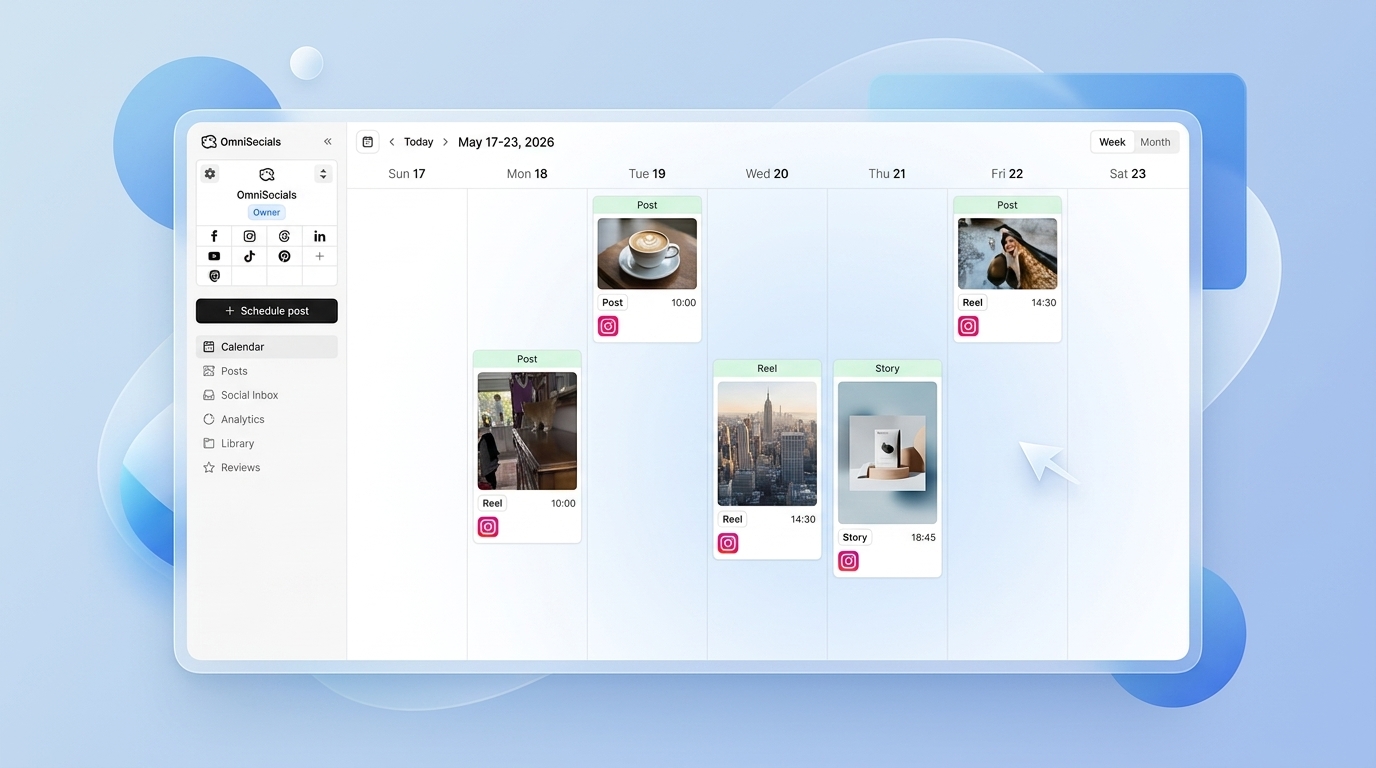
The two-step container flow, token management, video polling, and permission setup add real overhead to any project. OmniSocials API wraps all of this into a single authenticated POST request.
You authenticate once with your OmniSocials workspace token. After that, posting to Instagram looks like this:
const response = await axios.post(
  'https://api.omnisocials.com/v1/posts',
  {
    platforms: ['instagram'],
    content: 'Posted via OmniSocials API #automation',
    media: [{ url: 'https://yourdomain.com/image.jpg' }],
    scheduled_at: '2026-03-15T10:00:00Z', // optional
  },
  {
    headers: {
      Authorization: 'Bearer YOUR_OMNISOCIALS_TOKEN',
      'Content-Type': 'application/json',
    },
  }
);
The same call works for Facebook, LinkedIn, TikTok, and 8 other platforms. No container IDs, no separate publish step, no video polling. OmniSocials handles token refresh automatically so your integration doesn't break when a 60-day token expires. You can find the full reference at docs.omnisocials.com.
The trade-off: you're routing through OmniSocials rather than Meta's API directly. For most automation use cases, that's a worthwhile simplification. If you need direct access to raw Graph API data like story replies or live video metrics, the direct API is still the right choice. For the TikTok equivalent of this guide, see how to post to TikTok via the API.
Common Pitfalls
The image URL is not publicly accessible. This is the most common failure on first attempt. Instagram's servers fetch your image. If it's behind auth, on localhost, or returning a redirect, the container creation fails with a vague error. Host the image on S3, Cloudflare R2, or any public CDN first.
Publishing a video before it's done processing. Calling media_publish immediately after creating a video container almost always returns an error. Always poll for status_code === 'FINISHED' first.
Reusing a container ID. Each container can only be published once. If your publish call fails and you retry, you need to create a new container. Storing and reusing the same container ID is error code 24.
Token expiry in production. Long-lived tokens last 60 days. Build a token refresh job into your system from the start. A token that expires at 3am on a Saturday has broken more than a few production integrations.
App in Development mode. While in Development mode, your app can only interact with accounts that are added as testers or developers in the App settings. If a user outside your app tries to connect, it silently fails.
Frequently Asked Questions
Can I post to Instagram API without a business account?
No. The Instagram Graph API only supports Instagram Business and Creator accounts. Personal accounts cannot use the publishing API. You also need the account linked to a Facebook Page before you can authenticate and post programmatically.
Does the Instagram API support posting Reels?
Yes. The Instagram Graph API supports Reels via the REELS media type. You upload a publicly accessible video URL, set media_type=REELS, and publish it via the /media_publish endpoint. The video must be an MP4 between 3 seconds and 15 minutes.
How often do Instagram API access tokens expire?
Short-lived tokens expire after 1 hour. Long-lived user tokens last 60 days. You should refresh your long-lived token before it expires by calling the token refresh endpoint. System user tokens from the Meta Business Suite can be set to never expire.
What is the Instagram API rate limit for publishing?
As of 2026, the Instagram Graph API allows 50 API calls per user per hour for most endpoints. For media publishing specifically, you are limited to 25 posts per 24 hours per Instagram account, which matches the manual posting limit.
Can I post carousels via the Instagram API?
Yes. Carousel posts require creating individual item containers first, then creating a parent carousel container that references all the item IDs, and finally publishing the parent container. You can include 2 to 10 images or videos in one carousel.