
How to Create a Social Media Content Calendar in 2026
Posting to social media without a plan is how you end up staring at a blank caption box at 4pm wondering what to say. A social media content calendar fixes that.
It turns random posting into a system. You know what's going out, when, and on which platform. The result: more consistent content, less daily stress, and better performance because you're actually thinking ahead instead of scrambling.
Here's how to build a content calendar that works, whether you manage 2 platforms or 11.
Why You Need a Content Calendar
Consistency beats frequency. Posting 3 times per week every week outperforms posting 10 times one week and going silent for two. A calendar keeps you consistent even during busy periods.
It saves real time. Batch-creating content in one sitting is faster than writing individual posts throughout the week. A calendar lets you batch because you know what's needed ahead of time.
You can spot gaps before they happen. Without a calendar, you won't notice that you've posted nothing but promotional content for two weeks straight. A visual calendar makes imbalances obvious.
Teams stay aligned. If you work with a VA, designer, or team, a shared calendar eliminates "I didn't know you were posting that today" moments.
Step 1: Audit Your Current Posting
Before building a calendar, understand where you stand.
Check each platform you use:
- How often are you posting? (Be honest, not aspirational)
- Which posts got the most engagement in the past 30 days?
- Which platforms are driving actual results (traffic, leads, sales)?
- Which platforms are you neglecting?
This audit tells you what's working, what's not, and where a calendar will help most.
Don't add platforms you can't maintain. If you're struggling to post consistently on 3 platforms, adding 2 more won't help. Master the ones that matter first.
Step 2: Define Your Content Categories
Content categories prevent your feed from becoming a one-note sales pitch. Pick 4-6 categories and rotate through them.
Common content categories:
- Educational. Tips, tutorials, how-tos. Shows expertise. Usually the highest-engagement category.
- Promotional. Product features, offers, launches. Keep this under 20% of total posts.
- Behind the scenes. Team moments, process shots, office culture. Humanizes your brand.
- Curated. Sharing relevant industry content from others. Shows you're connected to the field.
- Engagement. Polls, questions, discussions. Drives comments and saves.
- User-generated. Customer stories, testimonials, reposts. Social proof that doesn't feel like marketing.
The 80/20 rule works here. 80% value (educational, curated, engagement, BTS) and 20% promotional. Adjust based on what your audience responds to.
Step 3: Set Your Posting Frequency
Be realistic. A calendar you can't maintain is worse than no calendar at all.
Recommended starting frequencies by platform:
| Platform | Minimum | Ideal | Notes |
|---|---|---|---|
| 3x/week | 5x/week | Mix feed posts, Stories, Reels | |
| 2x/week | 3-4x/week | Text posts perform best | |
| TikTok | 3x/week | 5-7x/week | Volume matters here |
| 2x/week | 3-5x/week | Groups + page posts | |
| X (Twitter) | 3x/week | Daily | Short-form, conversational |
| 3x/week | 5x/week | Batch-pin works well | |
| Bluesky | 2x/week | 3-5x/week | Conversation-driven |
Start with the minimum. You can always increase frequency. Burning out in week 2 because you planned 7 posts/day across 5 platforms helps nobody.
Step 4: Choose Your Calendar Tool
You have three options, from simple to powerful.
Spreadsheet (free, basic). A Google Sheets template works if you're managing 1-2 platforms solo. Columns: date, platform, content type, caption, visual, status. It breaks down fast with multiple platforms or team members.
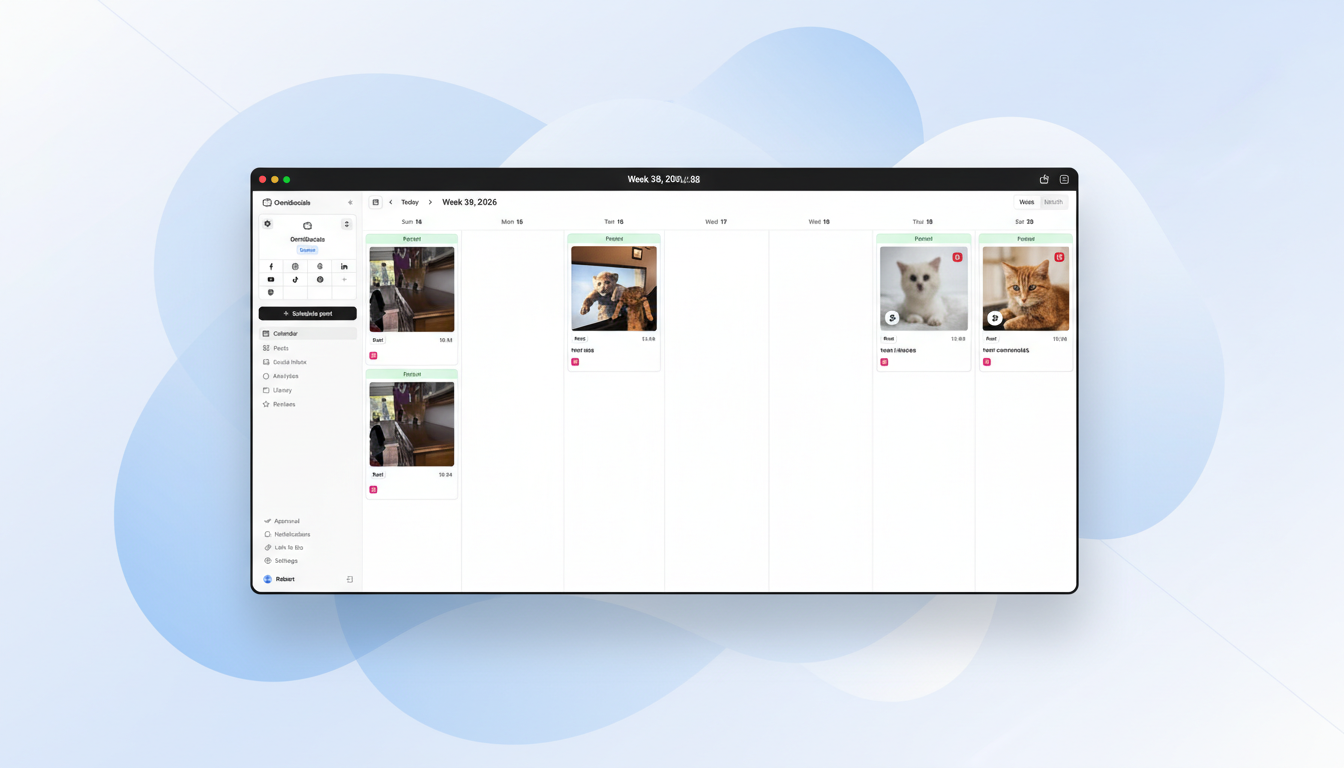
Dedicated scheduling tool (recommended). Tools like OmniSocials, Buffer, or SocialBee combine the calendar view with actual publishing. You plan the content and schedule it in the same place.
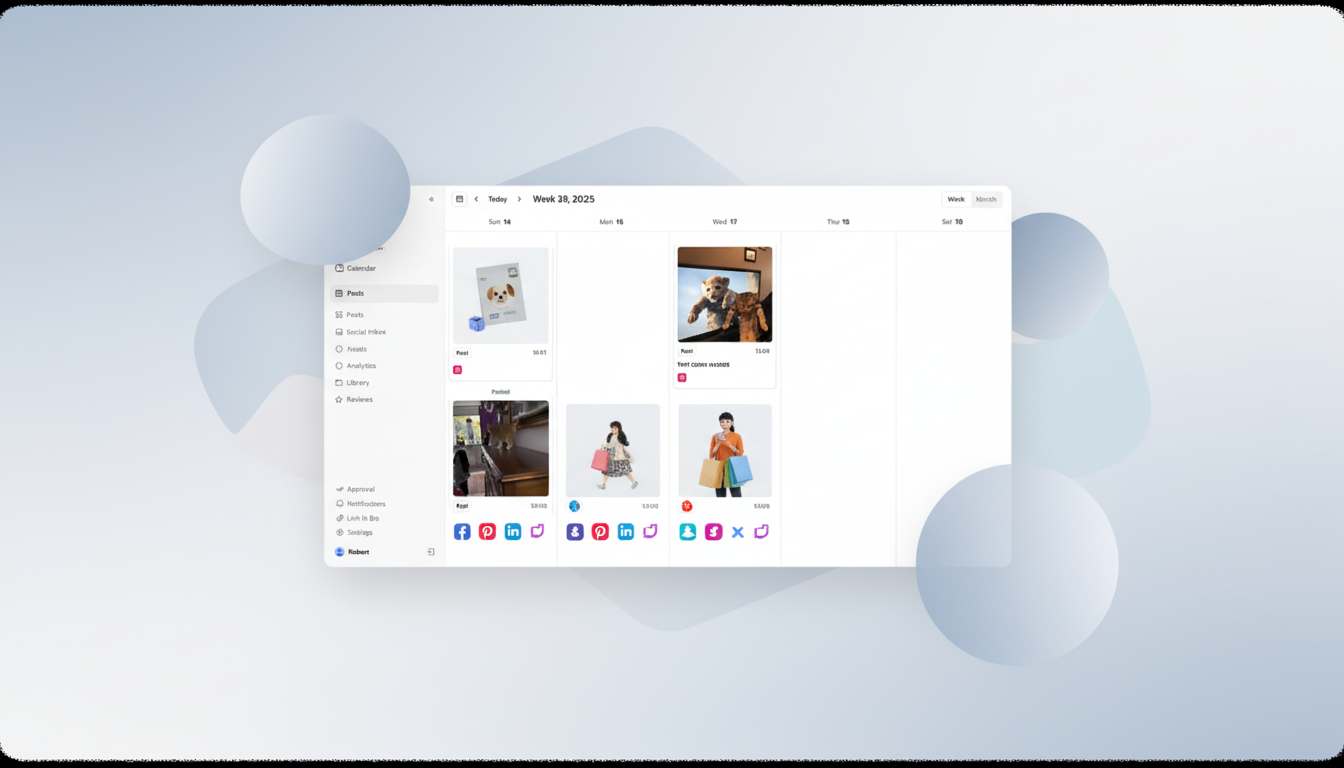
This is where most businesses should start. A scheduling tool with a visual calendar view eliminates the gap between "planning content" and "actually posting it."
Project management tool (for complex workflows). Notion, Asana, or Monday.com work for teams that need approval workflows, asset management, and multi-step production pipelines. Overkill for most small businesses.
Tool Comparison for Content Calendars
| Tool | Price | Calendar View | Scheduling | Platforms | Best For |
|---|---|---|---|---|---|
| OmniSocials | $10/mo | Yes | Yes | 11 | All-in-one calendar + scheduling |
| Buffer | Free/$5/ch | Yes | Yes | 8+ | Simple, clean calendar |
| SocialBee | $29/mo | Yes | Yes | 9 | Content category automation |
| Google Sheets | Free | Manual | No | N/A | Budget, solo use |
| Notion | Free/$10/mo | Custom | No | N/A | Complex team workflows |
Step 5: Build Your Weekly Template
A weekly template is the backbone of your calendar. Instead of deciding what to post every day, you assign content categories to days and fill in the specifics.
Example weekly template (3 platforms):
| Day | Bluesky | ||
|---|---|---|---|
| Mon | Educational tip (Reel) | Industry insight | Conversation starter |
| Tue | Behind the scenes | — | Educational thread |
| Wed | Engagement (poll/question) | How-to post | — |
| Thu | Curated content | — | Behind the scenes |
| Fri | Promotional | Case study | Product update |
Customize per platform. A LinkedIn post should not read like an Instagram caption. Your template should account for platform-specific formats and tones.
Customize per industry. Your content mix depends on your business type. eCommerce brands tend to weight promotional posts higher, while coaches and consultants focus more on educational and authority content. Restaurants lean on visual content and behind-the-scenes posts. Podcasters work differently — one episode generates 5-7 posts across platforms.
Leave room for spontaneity. Your calendar is a plan, not a prison. Leave 1-2 slots per week open for trending topics, timely reactions, or content that doesn't fit the template.
Step 6: Batch Create and Schedule
This is where the calendar pays off. Instead of creating content daily, you batch it.
The batch workflow:
- Week start (Monday or Sunday). Review your template for the week. Note which slots need new content.
- Content creation session (1-2 hours). Write all captions, select visuals, and customize per platform. Do this in one focused block.
- Schedule everything. Load content into your scheduling tool. Review previews for each platform.
- Daily check-in (10 minutes). Check for comments, DMs, and engagement. Respond to anything that needs attention.
Batch creation saves 3-5 hours per week compared to creating and posting content individually every day. That's the real ROI of a content calendar. If you're repurposing existing content — turning one blog post into 7-10 social posts — batch creation makes that workflow even more efficient.
Content Calendar Mistakes to Avoid
Planning too far ahead. Monthly planning sounds smart, but social media moves fast. Plan 2 weeks ahead for regular content. Anything beyond that gets stale.
Ignoring analytics. Your calendar should evolve. If educational posts consistently outperform promotional ones, adjust the ratio. Check performance weekly.
Treating all platforms the same. Cross-posting the exact same content to every platform is easy but lazy. At minimum, adjust the caption length, tone, and format for each platform.
Never breaking the template. Templates are guides, not rules. If something newsworthy happens in your industry, post about it even if it's not on the calendar.
Overcomplicating it. A simple spreadsheet with dates, platforms, and content types works. You don't need a 15-column Notion database with color-coded tags and automated workflows to post 3 times per week.
Instagram Content Calendar Tips
Instagram deserves special attention because it has the most content formats. Your Instagram content calendar should account for:
Feed posts (2-3x/week). Mix carousels, single images, and Reels. Carousels get the highest save rates. Reels get the most reach.
Stories (daily if possible). Behind-the-scenes, polls, quick updates. Stories keep you visible between feed posts.
Reels (2-3x/week). The algorithm prioritizes Reels for discovery. Even repurposed TikTok content works here.
Plan these separately in your calendar. A single "Instagram" column doesn't capture the format variety.
Free Content Calendar Templates
If you want to start with a template before committing to a tool:
Google Sheets template. Create a sheet with tabs for each week. Columns: date, platform, content type, caption, visual link, hashtags, status (draft/scheduled/published).
Notion template. Use a database with platform, date, and status properties. The calendar view shows your schedule visually. Add a "content type" select property for filtering.
Both work for getting started. You'll likely outgrow them within a few months and switch to a dedicated scheduling tool, but they're fine for learning the habit.
For more scheduling tools, check our best social media scheduler comparison. If budget is tight, see our free social media management tools guide.
Plan and schedule from one calendar. Try OmniSocials free for 14 days. Visual content calendar across 11 platforms for $10/mo.
Frequently Asked Questions
What should a social media content calendar include?
A social media content calendar should include the post date and time, platform, content type (educational, promotional, etc.), caption or copy, visual assets, hashtags, and post status (draft, scheduled, published). The best calendars also include content categories, campaign tags, and performance notes for tracking what works.
What is the best tool for a social media content calendar?
For most businesses, a dedicated scheduling tool works better than a spreadsheet. OmniSocials ($10/mo for 11 platforms) and Buffer (free for 3 channels) combine calendar planning with actual scheduling. SocialBee ($29/mo) adds content category automation. A Google Sheets template is fine for getting started, but you'll outgrow it.
How far in advance should you plan social media content?
Plan 2-4 weeks ahead for regular content. This gives you enough buffer to stay consistent without losing flexibility for trending topics or timely posts. For campaigns and product launches, plan 4-8 weeks ahead. Planning more than a month out for regular posts usually leads to stale content.