
How to Schedule Instagram Posts in 2026 (3 Free and Paid Methods)
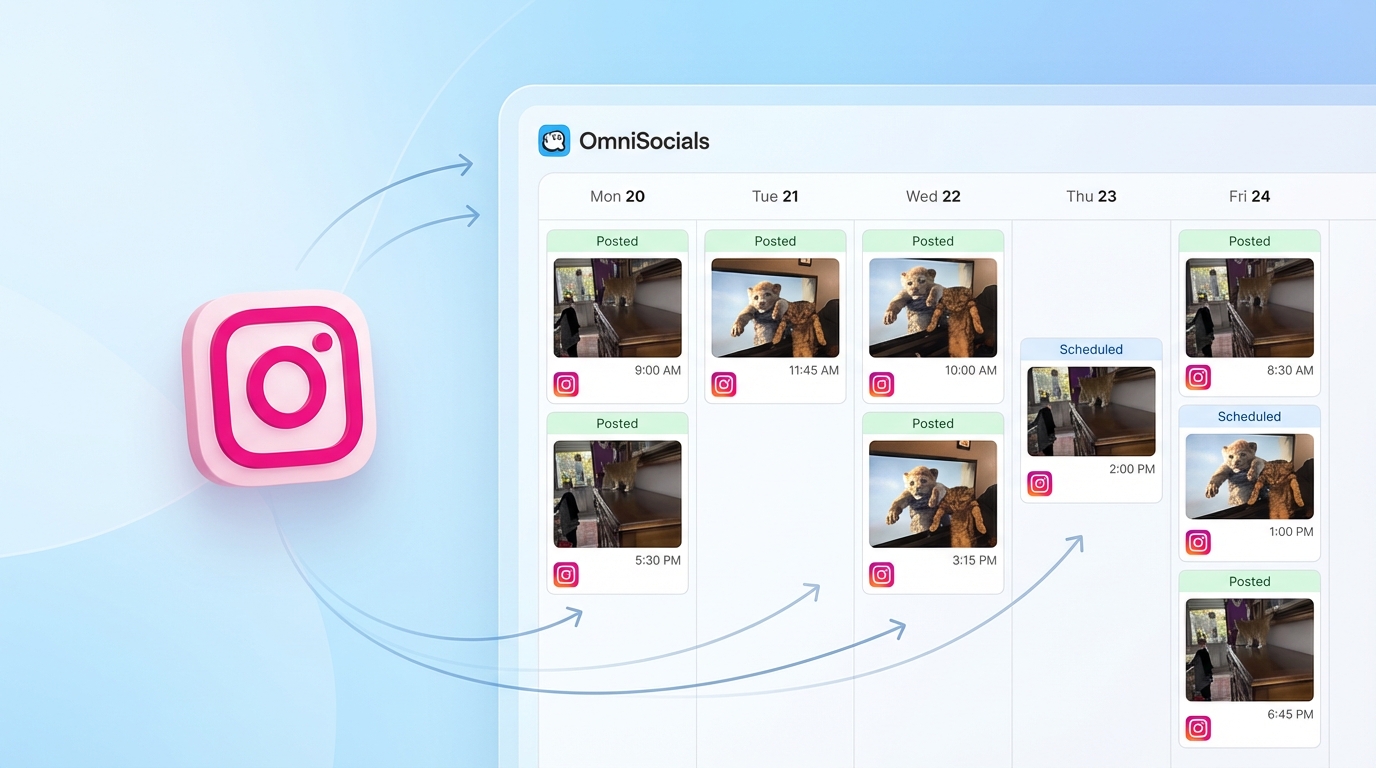
Want to schedule Instagram posts but not sure where to start? You have three options: the Instagram app itself, Meta Business Suite, or a third-party tool.
Each method is free (or close to it), and I'll walk you through all three step by step.
Over 2 billion people use Instagram every month, according to Meta's latest earnings report. If you're posting manually every time, you're spending hours each week that you could batch into one sitting.
Scheduling fixes that. You create your content in bulk, pick the best times, and let the tool handle the rest.
Here's exactly how to do it for every content type: feed posts, Reels, Stories, and carousels.
What Is Instagram Post Scheduling?
Instagram post scheduling lets you create content now and set it to publish automatically at a future date and time. You write the caption, attach your media, choose a time slot, and the post goes live without you touching your phone. It works for feed posts, Reels, carousels, and (with some limitations) Stories. You need a Business or Creator account to use any scheduling method.
Before You Start: Switch to a Business Account
This is the one thing every scheduling method requires. Personal Instagram accounts cannot schedule posts. Period.
The good news: switching is free and takes 30 seconds. You won't lose followers, posts, or any account data.
Here's how:
- Open Instagram and go to your profile.
- Tap the menu (three lines, top right).
- Go to Settings and privacy > Account type and tools > Switch to professional account.
- Choose Business or Creator. Business is better if you sell products or services. Creator is better for influencers and public figures. Both unlock scheduling.
- Pick a category for your account and tap Done.
That's it. You now have access to Instagram's scheduling features, analytics, and the ability to connect third-party tools.
Quick note: Switching to Business/Creator makes your account public by default. You can't schedule posts from a private account.
Method 1: Schedule in the Instagram App
This is the simplest option. No extra tools needed. Instagram added native scheduling in late 2022 for Business and Creator accounts.
What you can schedule: Feed posts, carousels (up to 10 slides), and Reels.
What you can't schedule: Stories, live videos, or posts from personal accounts.
Step-by-step:
Step 1. Open Instagram and tap the + button to create a new post.
Step 2. Choose your photo or video, apply your edits, and write your caption. Add hashtags, location tags, and tag people as you normally would.
Step 3. Before hitting Share, tap Advanced settings at the bottom of the screen.
Step 4. Toggle on Schedule this post.
Step 5. Pick your date and time. You can schedule up to 75 days ahead.
Step 6. Tap the back arrow, then tap Schedule.
Done. Instagram will auto-publish your post at the exact time you selected.
How to view and manage scheduled posts
Go to your profile, tap the menu (three lines), and select Scheduled content. From here you can:
- Preview any scheduled post
- Edit the caption or tags
- Reschedule to a different time
- Publish immediately
- Delete the scheduled post
Limitations of native scheduling
- 75-day maximum. You can't schedule further ahead than 75 days.
- 25 posts per day. Instagram caps you at 25 scheduled posts per 24-hour period.
- No Stories. You cannot schedule Stories in the Instagram app.
- No bulk scheduling. Each post must be created individually. No CSV upload, no batch queue.
- Business/Creator accounts only. Personal accounts are locked out entirely.
- Mobile only. The scheduling toggle is only available in the mobile app, not on desktop Instagram.
For most creators posting a few times per week, native scheduling works fine. But if you manage multiple accounts, want to schedule Stories, or need to plan content across platforms, you'll want one of the next two methods.
Method 2: Schedule via Meta Business Suite
Meta Business Suite is Meta's free desktop tool for managing Instagram and Facebook. It offers more scheduling features than the Instagram app, including Stories support.
This is the best free option if you want to schedule from a computer.
What you can schedule: Feed posts, carousels, Reels, and Stories.
What you can't schedule: Posts more than 29 days out, Reels with trending audio, or Stories with interactive stickers (polls, questions, countdowns).
Step-by-step:
Step 1. Go to business.facebook.com and log in with the Facebook account connected to your Instagram Business/Creator profile.
Step 2. In the left sidebar, click Content then Create post (or Create reel / Create story).
Step 3. Select your Instagram account. You can also toggle on Facebook if you want to cross-post.
Step 4. Upload your media, write your caption, and add any tags or location.
Step 5. Instead of clicking Publish, click the dropdown arrow next to it and select Schedule.
Step 6. Pick your date and time. The window is 20 minutes to 29 days from now.
Step 7. Click Schedule. Your post will appear in the Content Calendar.
Scheduling Stories in Meta Business Suite
This is the only free way to schedule Instagram Stories.
- In Meta Business Suite, click Create story.
- Upload your image or short video.
- Add text overlays, stickers, or links using Meta's editor. Note: the editor is more limited than Instagram's native Story editor.
- Schedule the Story for your chosen time.
Important limitation: Interactive Story elements like polls, question boxes, quizzes, sliders, and countdown stickers are not available in Meta Business Suite. If your Story depends on audience interaction, you'll need to post it manually or use a third-party tool that supports notification-based reminders.
Limitations of Meta Business Suite
- 29-day scheduling window. Much shorter than the 75-day native limit.
- No trending audio for Reels. You can upload Reels, but the trending audio library isn't available. You'll need to add audio before uploading.
- No interactive Story stickers. Polls, questions, and countdowns can't be scheduled.
- Requires a linked Facebook Page. Your Instagram Business account must be connected to a Facebook Page to use Meta Business Suite.
- Desktop-focused. There's a mobile app, but the experience is better on desktop.
Method 3: Schedule with a Third-Party Tool
If you manage multiple social accounts, need bulk scheduling, or want features that native tools don't offer, a third-party instagram scheduler is the way to go.
I won't do a full tool comparison here. We already have a detailed breakdown of the best Instagram scheduling tools compared. This section covers the general workflow and why you'd choose this route.
Why use a third-party tool?
- Bulk scheduling. Upload a CSV or batch-create dozens of posts at once.
- Multi-platform publishing. Schedule Instagram, TikTok, LinkedIn, Facebook, and more from one dashboard. If you want to schedule posts across all platforms, this is the only way to do it efficiently.
- Auto first comment. Automatically post your hashtags as the first comment instead of cluttering your caption.
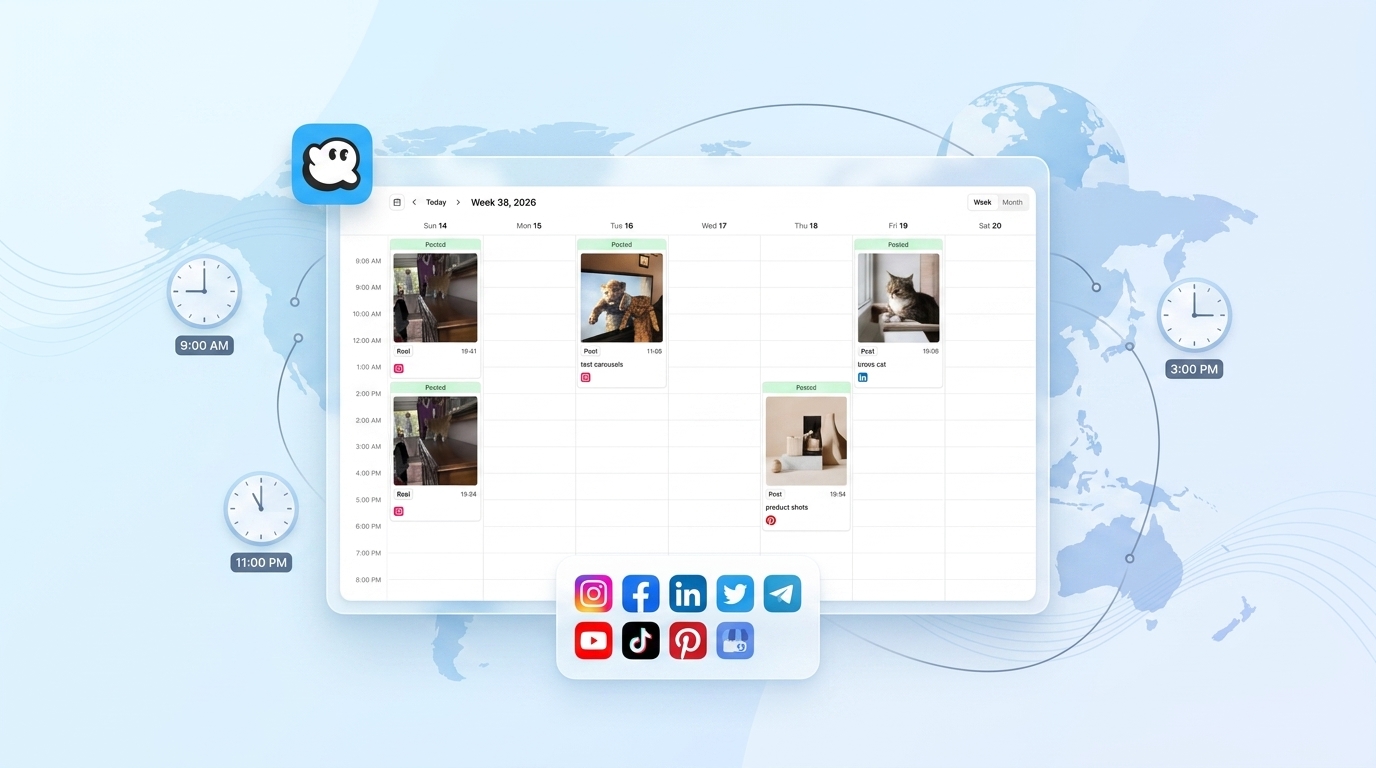
- Visual content calendar. Drag-and-drop calendar view across all your accounts.
- Team collaboration. Approval workflows, roles, and permissions for agencies and teams.
- Advanced analytics. Cross-platform performance data in one place.
General workflow (most tools):
Step 1. Sign up for the scheduling tool and connect your Instagram Business/Creator account. This uses Instagram's official API, so it's safe and sanctioned by Meta.
Step 2. Open the post composer. Select Instagram as the target platform.
Step 3. Upload your media, write your caption, and configure settings (first comment, tags, location).
Step 4. Pick your publish date and time, or use the tool's "best time" suggestion.
Step 5. Click Schedule. The tool will auto-publish at the set time.
For specific tool recommendations and pricing comparisons, check out our guide to the best Instagram scheduling tools compared.
A note on notification-based vs. auto-publish
Some tools offer auto-publish (the post goes live automatically). Others use notification-based publishing (the tool sends you a push notification at the scheduled time, and you tap to post manually).
Auto-publish works for feed posts, carousels, and Reels via Instagram's API. Stories with interactive elements always require notification-based publishing because the API doesn't support stickers like polls and questions.
Check that your chosen tool supports auto-publish for the content types you need. Most reputable tools in 2026 do.
How to Schedule by Content Type
Not every content type works the same way when scheduling. Here's what you need to know for each.
Feed Posts
The simplest to schedule. All three methods support feed posts with full auto-publish.
- Native app: Full support. Up to 75 days ahead.
- Meta Business Suite: Full support. Up to 29 days ahead.
- Third-party tools: Full support. Most allow unlimited scheduling window.
No special workarounds needed. Write your caption, attach your image, pick a time, and schedule.
Reels
Reels scheduling is supported across all three methods, but with a catch around audio.
- Native app: Full support including trending audio from Instagram's library.
- Meta Business Suite: Supports Reels, but no access to trending audio. You must add audio to your video file before uploading.
- Third-party tools: Same as Meta Business Suite. No trending audio library. Pre-edit your video with the audio track included.
For Reels specifically, the best posting times skew later in the day — 6-9 PM on weekday evenings tends to perform best.
Pro tip: Best Reels posting times skew later in the day. 6-9 PM on weekday evenings tends to perform best for short-form video on Instagram.
Stories
Stories are the trickiest content type to schedule.
- Native app: Not supported. You cannot schedule Stories in the Instagram app.
- Meta Business Suite: Supported, but limited. No interactive stickers (polls, questions, quizzes, countdowns, sliders). Basic text overlays and links only.
- Third-party tools: Most support scheduling basic Stories with auto-publish. Interactive Stories require notification-based reminders (the tool pings you, you post manually).
Workaround for interactive Stories: Prepare your Story content in advance, set a notification reminder in your scheduling tool for the exact time, and post manually when the alert comes through. It's not fully automated, but it keeps you on schedule.
Carousels
Carousels have a few technical limitations to keep in mind.
- Native app: Supports up to 20 slides per carousel (as of 2026).
- Meta Business Suite: Supports carousels.
- Third-party tools: API limit is 10 slides per carousel. If you need more than 10 slides, you'll have to post manually through the app.
- All slides must share the same aspect ratio. You can't mix portrait and landscape frames in a single carousel. Choose one ratio (1:1 square, 4:5 portrait, or 16:9 landscape) and stick with it.
| Content Type | Native App | Meta Business Suite | Third-Party Tools |
|---|---|---|---|
| Feed Posts | Full support, 75 days | Full support, 29 days | Full support |
| Reels | Full + trending audio | No trending audio | No trending audio |
| Stories | Not supported | Basic only (no stickers) | Basic auto-publish + notification reminders |
| Carousels | Up to 20 slides | Supported | API limit: 10 slides |
Best Times to Schedule Instagram Posts in 2026
Posting at the right time puts your content in front of more people. These are aggregate best times based on data from Sprout Social's 2025 report and Later's analysis of millions of posts.
| Day | Best Times (ET) | Best For |
|---|---|---|
| Monday | 11 AM - 1 PM | Feed posts, carousels |
| Tuesday | 9 - 10 AM, 12 PM | Feed posts |
| Wednesday | 9 - 10 AM (peak day) | All content types |
| Thursday | 11 AM - 1 PM | Feed posts, carousels |
| Friday | 10 AM - 12 PM | Reels, lighter content |
| Saturday | 9 - 11 AM | Reels, Stories |
| Sunday | 10 AM - 12 PM | Carousels, longer content |
Key takeaways:
- Wednesday and Thursday are consistently the highest-engagement days.
- 9-10 AM on Wednesdays is the single best time slot for most accounts.
- The 11 AM - 1 PM lunch window performs well on most weekdays.
- 6-9 PM evenings are the sweet spot for Reels, especially on weekdays.
- Weekends still get engagement, but the window is narrower.
These are starting points. After two to three weeks of consistent posting, check your Instagram Insights (under your profile > Professional dashboard) to see when your specific audience is online. Every audience is different.
If you want to plan your social media content more strategically, building a content calendar around these time slots is a solid starting point.
Common Scheduling Mistakes to Avoid
I've made most of these myself. Save yourself the trouble.
1. Scheduling and forgetting
Scheduling is not a "set it and forget it" system. You still need to respond to comments, engage with your audience, and adjust your strategy based on what performs.
Block 15-20 minutes after each scheduled post goes live to respond to early comments. The first hour of engagement signals to Instagram's algorithm whether to push the post further.
2. Ignoring time zones
Your posting time should match when your audience is active, not when you happen to be at your desk. If your followers are mostly in the US but you're scheduling from Europe, adjust accordingly.
Check Instagram Insights > Your Audience > Most Active Times to see exactly when your followers are online.
3. Using the same caption across platforms
Cross-posting is efficient. Copying the exact same caption to Instagram, LinkedIn, and TikTok is lazy and it shows.
Instagram captions support up to 2,200 characters, hashtags, and @mentions. LinkedIn has a different tone. TikTok captions are shorter. Customize per platform, even if the media is the same.
4. Scheduling carousels without checking aspect ratios
Every slide in a carousel must share the same aspect ratio. If you mix a 1:1 square image with a 4:5 portrait image, Instagram will crop one of them. This can cut off text or important visual elements.
Before scheduling, preview every slide in your scheduling tool or in Instagram's editor.
5. Not testing your first scheduled post
Don't schedule 30 posts on your first try. Schedule one. Verify it publishes correctly, looks right in the feed, and the caption renders properly. Then batch the rest.
This is especially important with third-party tools. Connection issues, token expirations, and formatting quirks are easier to catch with a single test post than after queuing a month of content.
Frequently Asked Questions
Can you schedule Instagram Stories?
Not in the Instagram app. Stories scheduling is only available through Meta Business Suite (basic Stories without interactive elements) and third-party tools. Interactive stickers like polls, questions, quizzes, and countdowns cannot be auto-published through any tool. Those require manual posting. You can set a reminder through your scheduling tool to stay on track.
Does scheduling hurt Instagram engagement?
No. Instagram's native scheduling and API-based third-party tools publish posts through the same systems as manual posting. The algorithm does not penalize scheduled content. In fact, scheduling often improves engagement because you can consistently post during peak times instead of whenever you happen to be free.
Can personal accounts schedule posts?
No. You need a Business or Creator account. The switch is free and takes about 30 seconds. Go to Settings > Account type and tools > Switch to professional account. You won't lose any followers, posts, or account history when you switch.
How many Instagram posts should I schedule per week?
For most accounts, 3-5 feed posts per week, 4-7 Stories per week, and 2-4 Reels per week is a strong cadence. Consistency matters more than volume. Instagram's algorithm rewards accounts that post on a regular pattern. Pick a frequency you can maintain for months, not just a week.
What happens if a scheduled Instagram post fails?
You'll get a notification from Instagram or your scheduling tool. Common causes include expired login sessions, connection errors, content that violates community guidelines, or file format issues. Most third-party tools retry automatically and send you an email if the post still fails. Check your scheduled content queue at least once a week to catch any issues early.
If you're ready to stop posting manually and start batching your Instagram content, a scheduling tool makes the process painless. OmniSocials supports Instagram along with 10 other platforms for $10/mo flat. No per-channel fees. 14-day free trial.